help index
Player Settings
Use player settings to customize the user display and control features. This feature only applies to MasteryNet Advantage courses - courses that require the MasteryNet Player.
The “Settings Tasks” box lists four options which are available from anywhere within the Player Settings tab:
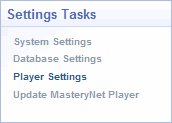
- System Settings
- switch to the System Settings browser view
- Database Settings
- switch to the Database Settings browser view
- Player Settings
- this link is inactive while already in the Player Settings view
- Update MasteryNet Player
- upload an update file for the course player
General Options Tab
Choose the training display’s window size.
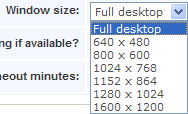
NOTE: The full desktop window size is not recommended for wide-screen monitors.
Many courses offer closed captioning for video segments. Choosing “Yes” here prompts the player to offer closed captioning (when available).

You can choose to end a learner’s connection to the training by specifying a certain amount of time the user is logged in to the Training Server without any courseware activity.

The Install Options section displays the most recent player version available. Make player installation choices here.
Quiz Options Tab
Control how course quizzes function and record.

Set the rule to determine the basis for scoring. Choose between two different methods to easily change how learner mastery is calculated.
- “Quiz score”
- measures the mastery level based on the percentage of correct questions answered the first time the learner answers each quiz question.
- “Review score”
- measures the mastery level based on the number of questions the learner answers correct, no matter how many attempts it takes during the quiz and/or review.
If the basis for determining course mastery is set to “Review score”, the learner will always achieve mastery when completing the quiz and review.
Allow or prohibit the learner from viewing their quiz scores.

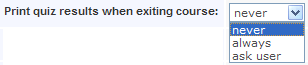
Based on your settings, the user can print quiz results when he/she exits a course.
Once the learner answers all quiz questions in a lesson, a review of all missed questions occurs. During this review, the learner may require more than one attempt to understand and correctly answer a question. However, you can limit the number of attempts during the review to any number between one and ten.

Some courses may contain pools of questions that can be offered randomly throughout each lesson quiz. Choose “Yes” to use question pools that may be available within a course.

Controls Tab
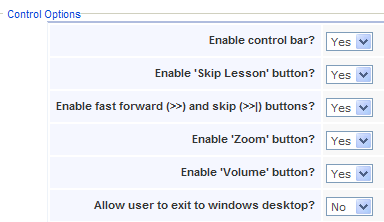
The first few options in this display refer to the Mastery course control bar.

These course control options let you choose to:
- Enable control bar
- Enable or disable the course control bar that appears at the bottom portion of the course screens; which contains features of Replay and Back, Forward and Skip, as well as an Options button containing additional control features.
- Enable ‘Skip Lesson’ button
- You may choose to keep the control bar on but disable the “Skip Lesson” option that appears in the additional control features of the Options button.
- Enable ‘fast forward’ (>>>) and ‘skip’ (>>|) buttons
- You may choose to keep the control bar on but disable the “Forward” and “Skip” options that appears in the control bar.
- Enable ‘Zoom’ button
- By default, a Zoom button appears at the bottom left corner of each video segment. You can choose to disable this feature here.
- Enable ‘Volume’ button
- By default, a Volume button appears at the bottom right corner of each video and audio segment. You can choose to disable this feature here.
- Allow user to exit to windows desktop
- You can block the users’ ability to exit to a Windows desktop while playing a course in “Full Screen” display.
Diagnostics Tab
Options within the diagnostics display help you diagnose possible program issues. Course features can be switched on and off to quickly test or move to a particular part of a course.
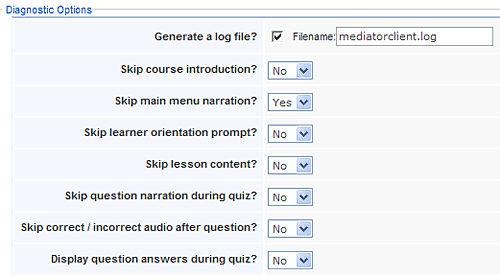
Using these diagnostic tools, you can choose to:
- Generate a log file
- check this box and enter a file name to create a log file which may be used to assist Mastery Customer Support
- Skip course introduction
- bypass the course introductory content (prior to the main menu)
- Skip main menu narration
- eliminate the message at the main menu that states, “This is the main course menu. Click on the lesson you’d like to take now. Be sure to take all the lessons.”
- Skip learner orientation prompt
- do not offer a learner orientation that offers operating instructions before beginning the course
- Skip lesson content
- eliminate lesson content: use this feature to go directly to the lesson quiz questions
- Skip correct / incorrect audio after question
- removes question correct or incorrect feedback responses
- Display question answers during quiz
- shows the question answer at the top of the screen: a great way for an administrator to review questions and answers!